Blogger
About comments
Enabling comments
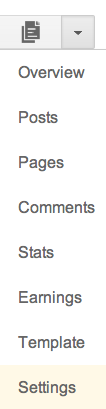
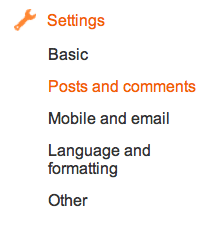
To enable comments, click on Settings from the drop-down menu on your Dashboard, then go to the area for posts and comments.
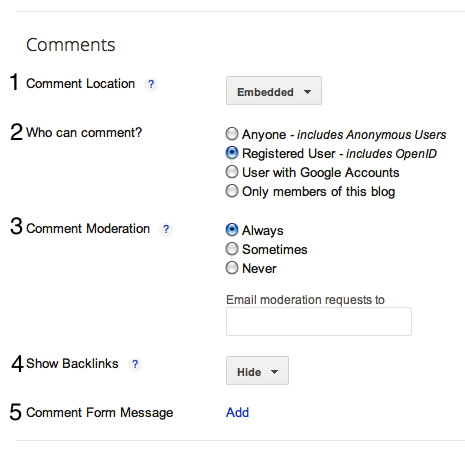
- Comment location: Select "Embedded" if you'd like to enable threaded commenting.
- Who can comment?: Here you can specify who can comment on your posts. The options range from anyone (which means that anonymous users can comment without having to sign in to any type of account first) to only members of the blog (if it's a team blog).
- Comment moderation: Decide if you'd like to always, sometimes, or never moderate comments. If you select "Always," you'll have the option to enter in an email address where you can receive notifications that there are comments awaiting moderation. If you select "Sometimes," you'll be prompted to specify how many days old the post should be before it requires moderation. "Sometimes" is a good option for bloggers who want to make sure that comments on all posts are kept fresh and recent, and that conversation or debates on old posts aren't suddenly rekindled.
- Show backlinks: Turning on this option will show all the URLs around the web that link to your blog post. The URLs will be visible to both you and to the readers of your blog.
- Comment form message: Add a message to your readers who click to comment on your blog. Some bloggers like to include a little thank-you note, or details about how they tend to follow-up with comments.
If you don't want your comment settings to be blog-wide, you can click on the menu on the right side of the Post Editor to set post-specific comment settings. Here you can choose among three options: Allow; Don't allow, hide existing; Don't allow, show existing.

Threaded comments
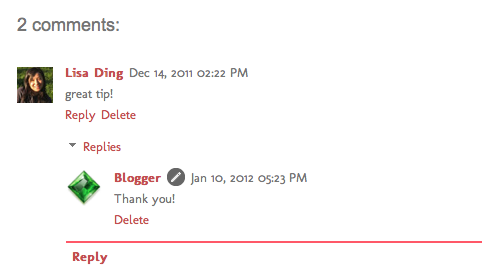
Single level commenting allows a reader to post a comment to a post.
Threaded commenting allows a reader to reply to other reader comments on
that post. Blogger supports threaded commenting with two levels -- the
original comment, and the replies to that comment.
 For example, let's say that Fred reads Julie's baking blog, and
comments on a post she wrote about chocolate lava cake, suggesting that
it tastes great with raspberries. Sarah, another reader of Julie's blog
and also a huge fan of raspberries, wants to reply directly to Fred.
With 2-level commenting, Sarah can click "Reply to this comment"
directly under Fred's text, and respond to him. Anyone else interested
in responding to Fred's comment can do so as well, adding onto the
second tier of comments.
For example, let's say that Fred reads Julie's baking blog, and
comments on a post she wrote about chocolate lava cake, suggesting that
it tastes great with raspberries. Sarah, another reader of Julie's blog
and also a huge fan of raspberries, wants to reply directly to Fred.
With 2-level commenting, Sarah can click "Reply to this comment"
directly under Fred's text, and respond to him. Anyone else interested
in responding to Fred's comment can do so as well, adding onto the
second tier of comments.
Enabling threaded commenting
If you have commenting enabled on your blog, then threaded commenting will work provided you have your blog feed set to "Full," and have chosen the “Embedded" option as opposed to “Full page” or “Popup window.” To change your commenting settings, just go to the Comments section under Settings | Posts and comments. The setting to change your blog feed can be found under Settings | Other.
Notifications
A threaded commenting system means more discussion and back-and-forth dialogue. If you’d like to be notified of any updates to a discussion, just click “Follow by email” to subscribe to the thread. This way, you’ll be notified via email so you can keep up with the conversation. Keep in mind that this is a different subscription than the “Follow by email” gadget used to follow another blogger’s blog posts.
 For example, let's say that Fred reads Julie's baking blog, and
comments on a post she wrote about chocolate lava cake, suggesting that
it tastes great with raspberries. Sarah, another reader of Julie's blog
and also a huge fan of raspberries, wants to reply directly to Fred.
With 2-level commenting, Sarah can click "Reply to this comment"
directly under Fred's text, and respond to him. Anyone else interested
in responding to Fred's comment can do so as well, adding onto the
second tier of comments.
For example, let's say that Fred reads Julie's baking blog, and
comments on a post she wrote about chocolate lava cake, suggesting that
it tastes great with raspberries. Sarah, another reader of Julie's blog
and also a huge fan of raspberries, wants to reply directly to Fred.
With 2-level commenting, Sarah can click "Reply to this comment"
directly under Fred's text, and respond to him. Anyone else interested
in responding to Fred's comment can do so as well, adding onto the
second tier of comments.Enabling threaded commenting
If you have commenting enabled on your blog, then threaded commenting will work provided you have your blog feed set to "Full," and have chosen the “Embedded" option as opposed to “Full page” or “Popup window.” To change your commenting settings, just go to the Comments section under Settings | Posts and comments. The setting to change your blog feed can be found under Settings | Other.
Notifications
A threaded commenting system means more discussion and back-and-forth dialogue. If you’d like to be notified of any updates to a discussion, just click “Follow by email” to subscribe to the thread. This way, you’ll be notified via email so you can keep up with the conversation. Keep in mind that this is a different subscription than the “Follow by email” gadget used to follow another blogger’s blog posts.
updated
02/15/2013
Prevent unwanted comments and comment spam
Blogger has several built-in measures for dealing with comment spam and other associated dastardly behavior.
- Only five html tags are accepted:
<a>(for making links)
<strong>and<b>(for making text bold)
<em>and<i>(for making text italicicized) - All links will automagically use the
rel="nofollow"tag, so they'll receive no PageRank boost. - You can choose to receive notification by email when new comments have been posted on your blog. This way, you can monitor them for spam and delete them when necessary.
- You can enable word verification for your comments. This will require an extra step in the commenting process, which will deter automated comment spamming systems.
- You can enable comment moderation, which will let you view new comments and approve or reject them before they appear on your blog.
updated
02/15/2013
Delete comments
You can delete any comment that you create on anyone else's blog, as
long as you signed in to your Google Account when you left the comment.
You can also delete any comments (registered or anonymous) that are left
on your own blog, or on another blog for which you have admin
privileges.
To delete a comment, first make sure that you are logged in to the correct Blogger account (administrator of the blog or author of the comment). Then go to the blog and find the page where the comment is listed. Next to the comment, you should see a trash can icon, like this:
 Click the trash can and you will see this confirmation page, which also lists the comment for review:
 You can cancel here if you change your mind. Clicking the "Delete
Comment" button will remove the text of the comment from your page, but
leave the author's name and a message saying "this comment has been
removed." If you check the "Remove Forever" option, then no trace of the
comment will remain on your blog.
You can cancel here if you change your mind. Clicking the "Delete
Comment" button will remove the text of the comment from your page, but
leave the author's name and a message saying "this comment has been
removed." If you check the "Remove Forever" option, then no trace of the
comment will remain on your blog.
 Notes:
To delete a comment, first make sure that you are logged in to the correct Blogger account (administrator of the blog or author of the comment). Then go to the blog and find the page where the comment is listed. Next to the comment, you should see a trash can icon, like this:
Click the trash can and you will see this confirmation page, which also lists the comment for review:
You can cancel here if you change your mind. Clicking the "Delete
Comment" button will remove the text of the comment from your page, but
leave the author's name and a message saying "this comment has been
removed." If you check the "Remove Forever" option, then no trace of the
comment will remain on your blog.
Notes:
- If you can't see the trash can icon, then that is probably because of a caching issue with your browser. First double check that you are logged in to the correct Blogger account. Then clear your browser's cache and refresh the comment page a few times, until the icon appears. Alternatively, you could try deleting the comment from a different browser.
- If you have a firewall or other security software (e.g. Norton AntiVirus) on your computer, then this could also be causing the icons to be hidden. Try temporarily disabling this software or modifying its settings to delete your comments.
- Once a comment has been deleted, there is no way to recover it.
- It is not possible to edit comments. If you want to edit your own comment, you can simply delete it and then re-enter it with the changes. (However, the timestamp will be modified to reflect the time of the new comment.)
updated
02/15/2013
Leave comments on a blog
If someone has comments enabled on his or her blog, then you can
usually find a "comments" link at the end of each post, like this:
 If you click this link, you'll see the comments that other readers
have left, and the option to leave your own. The link might open a
pop-up window, depending on how the blog owner configured their comment settings.
If you click this link, you'll see the comments that other readers
have left, and the option to leave your own. The link might open a
pop-up window, depending on how the blog owner configured their comment settings.
 >
Beneath the text field for your comment are the identity options.
(The list might have other options, depending on the blog's settings.)
>
Beneath the text field for your comment are the identity options.
(The list might have other options, depending on the blog's settings.)
 Options might include:
If you click this link, you'll see the comments that other readers
have left, and the option to leave your own. The link might open a
pop-up window, depending on how the blog owner configured their comment settings.>
Beneath the text field for your comment are the identity options.
(The list might have other options, depending on the blog's settings.)
Options might include:- Google Account: If you choose this option, your comment will be attributed to your Blogger display name, which will then link to your Blogger profile. If you've chosen to link your blog to Google+, then the name used on your Google+ profile will show up next to the comment, and link to your Google+ profile.
- Anonymous: If the blog owner has allowed anonymous comments, then you'll also have the option to leave a comment anonymously. If you leave an anonymous comment, it will not link back to your blogs, Blogger profile, or Google profile in any way.
- OpenID: Learn more about what it means to use OpenID to leave a comment.
- Other third-party sign-in options
- This article only covers Blogger's commenting system. Some Blogger users have installed third-party comment systems (e.g. Haloscan, Enetation, etc.) which will work differently.
updated
02/15/2013
Moderate comments
The ability to moderate comments gives you control over the kind of
messages people leave on your blog. You can find the comment moderation
(3) setting on the Settings | Posts and comments tab, along with all of the other comment settings:
You can decide if you'd like to always, sometimes, or never moderate
comments. If you select "Always," you'll have the option to enter in an
email address where you can receive notifications that there are
comments awaiting moderation. If you select "Sometimes," you'll be
prompted to specify how many days old the post should be before it
requires moderation. "Sometimes" is a good option for bloggers who want
to make sure that comments on all posts are kept fresh and recent, and
that conversation or debates on old posts aren't suddenly rekindled.
If you decide to set up comment moderation, all incoming comments will go to a special "Awaiting moderation" page, which you can find under the Comments | Awaiting moderation tab:
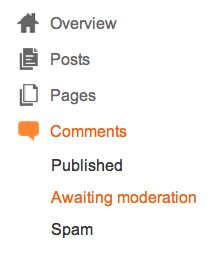
On this page, you'll see a list of all the comments that have been
created but have not yet been approved or rejected. (This list excludes
any comments made by admin members of the blog.)
Each line in the list displays the comment, the author's name, and the date it was created. You can approve or delete the comment, or mark it as spam by hovering over the comment and selecting the option you'd like. You can also select multiple comments and publish or reject them all at once by using the check boxes and buttons at the top of the list.
This entire process can also be done via email. If you entered an email address for moderation, you'll get a message for each comment which will contain "Publish" and "Reject" links, as well as a link to the main moderation page for the blog. The links provided will prompt you to sign in to your Google Account if you aren't already. The links will only work for new comments, and won't let you change the state of a comment that's already been moderated.
Notes:
If you decide to set up comment moderation, all incoming comments will go to a special "Awaiting moderation" page, which you can find under the Comments | Awaiting moderation tab:
Each line in the list displays the comment, the author's name, and the date it was created. You can approve or delete the comment, or mark it as spam by hovering over the comment and selecting the option you'd like. You can also select multiple comments and publish or reject them all at once by using the check boxes and buttons at the top of the list.
This entire process can also be done via email. If you entered an email address for moderation, you'll get a message for each comment which will contain "Publish" and "Reject" links, as well as a link to the main moderation page for the blog. The links provided will prompt you to sign in to your Google Account if you aren't already. The links will only work for new comments, and won't let you change the state of a comment that's already been moderated.
Notes:
- Comments that have already been published or rejected are removed from the moderation list. Rejected comments are deleted and can't be recovered. Approved comments can be deleted in the usual way if you decide you no longer want them.
- Only blog administrators will be able to moderate comments. Team members without admin privileges will not have access.
updated
02/15/2013
Comment with OpenID
OpenID is an open standard that allows users of OpenID-enabled services to log in to any OpenID-supported
site with one set of login credentials. What does that mean for your blog? It's a way to authenticate
user comments on your blog, without requiring your readers to have a Google Account. For example, let's
say you have a friend, Brady from LiveJournal, who doesn't have a Google Account. With OpenID, he can
now comment on your blog using his OpenID credentials and identify himself as the owner of

Note that allowing "Anyone" to comment on your blog will allow more than just OpenID users to comment.
 Next, provide your OpenID login information. After you click "Publish Your Comment," you will be
redirected to your OpenID provider to authenticate your ID. After authenticating with the provider, you
will return to the comments page and your comment will automatically be posted. Your comment will appear
appear with a OpenID icon to the left of the comment.
Next, provide your OpenID login information. After you click "Publish Your Comment," you will be
redirected to your OpenID provider to authenticate your ID. After authenticating with the provider, you
will return to the comments page and your comment will automatically be posted. Your comment will appear
appear with a OpenID icon to the left of the comment.
Note that your display name is the name sent to us by the OpenID provider. If no display name is given, we will try to derive it from your OpenID URL. This is the name that will be displayed as the author of the comment and will be linked to your OpenID URL.
http://brady.livejournal.com, instead of commenting anonymously. Please see the OpenID site for more information about OpenID.How do I Enable OpenID Commenting on my Blog?
Simply go to your Settings | Comments tab and select "Registered Users" or "Anyone" for the "Who Can Comment" option. Don't forget to click "Save Settings" on the bottom of the page.
Note that allowing "Anyone" to comment on your blog will allow more than just OpenID users to comment.
How do I comment Using my OpenID identity?
Start off by going to the comment page of the post where you'd like to comment. Then, select your OpenID provider from the drop down menu next to the "Sign-in using" option. If your OpenID provider is not on the list, please choose the "Any ID" option.
Next, provide your OpenID login information. After you click "Publish Your Comment," you will be
redirected to your OpenID provider to authenticate your ID. After authenticating with the provider, you
will return to the comments page and your comment will automatically be posted. Your comment will appear
appear with a OpenID icon to the left of the comment.Note that your display name is the name sent to us by the OpenID provider. If no display name is given, we will try to derive it from your OpenID URL. This is the name that will be displayed as the author of the comment and will be linked to your OpenID URL.
updated
02/15/2013
The word-verification option
If you choose "yes" for this setting, then people leaving comments on your blog will be required to complete a word verification step, similar to the one presented when you create a blog:
 Adding this option prevents automated systems from posting comments
to your blog, since it takes a human being to read the word and pass
this step. If you've ever received a comment that looked like an
advertisement or a random link to an unrelated site, then you've
encountered comment spam. A lot of comment spam is made automatically by
software which can't pass the word verification step, so enabling word
verification is a good way to prevent unwanted comments.
Adding this option prevents automated systems from posting comments
to your blog, since it takes a human being to read the word and pass
this step. If you've ever received a comment that looked like an
advertisement or a random link to an unrelated site, then you've
encountered comment spam. A lot of comment spam is made automatically by
software which can't pass the word verification step, so enabling word
verification is a good way to prevent unwanted comments.Related Articles
- Keeping comments clean
Comment Inbox
To make it easier for you to manage your comments, we’ve created a new Comments tab for you to access them. Here, you can manage published comments, comments that have been flagged as spam and comments awaiting moderation if you have turned on Comment Moderation.
Users with Comment Moderation turned on will continue to see comments that need moderation and have not been flagged as spam in Comments | Awaiting Moderation. Users without Comment Moderation will not see any comments in Comments | Awaiting Moderation.
Spam Inbox
Blogger now filters comments that are likely spam comments to a Spam Inbox, much like the spam folder in your email. When someone leaves a comment on your blog, it will be reviewed against our spam detector, and comments that are identified as possible spam will be sent to your blog’s Spam Inbox, found at Comments | Spam.
You can help improve our ability to automatically detect spam comments by checking your Spam Inbox and deleting spam comments and marking real comments that may have been flagged as spam as Not Spam.
If you have questions about what constitutes spam on Blogger, please review our Content Policies.updated 02/15/2013


No comments:
Post a Comment